


Hackadelic Multiblog Kit
 Welcome to the home of Hackadelic Multiblog Kit – a toolkit that assists with the creation of multi-blogs on top of Virtual Multiblog, as well as with proper Virtual Multiblog setup.
Download the latest version at wordpres.org
[toc class=toc-right]
About Multiblog Kit
If you are maintaining a WordPress blog, you know how much effort it is to keep up with the pace at which plugins, themes, and WP itself, are updated, and do all the other work needed to keep your site a secure and attractive place. Imagine you’d have to mutliply that effort with every new site you create. Soon you would have to quit your day job to maintain your sites.
Clearly, it is desirable to serve all your sites from a single WordPress installation.
This is why I started my Quest for a Multi-Blog Solution.» And I found a technology to accomplish just that: Virtual Multiblog (or VMB for short).
However, for a non-techy user, VMB is a bit complicated to setup and use. And that is where Hackadelic Multiblog Kit comes into play.
Features
- Easy to use.
- Operates on top of stable and reliable technology – Virtual Multiblog.
- Facilitates learning VMB ins and outs by the means of “dry run” and detailed logging of the performed actions.
- Automates the transformation of a normal WordPress installation into a multi-blog platform.
- Automates the creation of new blogs from a single code base, and with a single database.
Recent Releases
Usage (with Screenshots)
Prerequisite for using the plugin is that you have the VMB code files uploaded under wp-content. This will create a new directory, wp-content/multiblog, that contains all required VMB files.
Note: Though VMB supports other directory layouts, Multiblog Kit does not.
Using the plugin is straight forward. After installing and activating it, you will find a new admin page: Tools->Multiblog Kit. This page contains several panes, one per possible operation. Which operations are possible depends on the VMB state that the plugin detects, and they reflect the typical work flow in a multi-blog.
All operations provide an “I want to continue” check box below the button that starts the operation. If not checked, a “dry run” will be performed. That is, actions with persistent effects (writing to files or copying files) will not be performed. Instead, what would have been written is displayed on screen. That way, you can learn the basics of how to configure VMB manually. After viewing it, you can hit the browser back button, tick the checkbox, and head for the real thing.
Attention: Performing file write operations requires adequate file system permissions. All operations need permissions to write to the wp-content/multiblog/config directory. Additionally, VMB activation and deactivation need write permissions for wp-config.php (and wp-config.php.vmbkit-backup after it’s been created) in the WP root directory.
Activate VMB
When the plugin detects that VMB is there, but it has not been activated, it offers a single operation: to activate it.
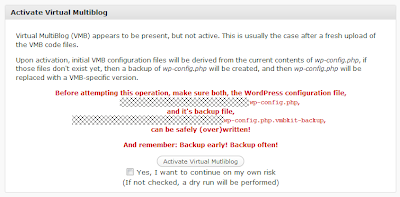
Caveat: This operation will modify your wp-config.php file. Although a backup file is created, it is advised that you make one yourself initially (and name it differently than wp-config.php.vmbkit-backup).
Once VMB is active, you will be given two options:
- to deactivate it
- to create a new blog
Deactivate VMB
This will basically restore wp-config.php from wp-config.php.vmb-backup.
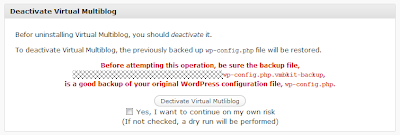
You must deactivate VMB before removing it!1
Create A New Blog
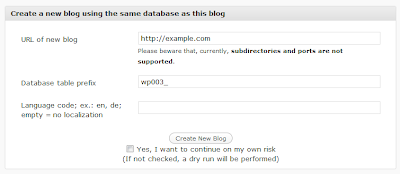
Here, you will be prompted to enter a domain/subdomain (must already exist and point to your blog directory – just like your first domain), a database table prefix (choose it carefully), and optionally a language for the new blog (you will need the appropriate language pack). Then, tick the checkbox, hit the button, and follow the instructions. You will be taken to a blog installation that will setup the appropriate database tables and give you a new, empty blog. (Which you can configure the usual way. The difference is that all themes and plugins are already there, ready to activate them as you see fit.)
Is this plugin worth something to you?
If you use this plug-in, please consider making a donation to support the further development. Donate whatever you feel appropriate. Any amount is appreciated.
Thank you.
- Note though that deactivatin VMB is not the same as deactivating the VMBKit plugin. The latter is done from within the Plugin dashboard page. [↩]